Git is one of the most essential tools for every developer, software engineer, and IT professional. Yet, many developers still forget Git commands and end up Googling the same things again and again.
What Is Git? (Quick Introduction)
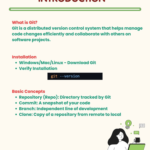
Git is a distributed version control system that helps developers track changes in code, collaborate with teams, manage versions, and safely experiment without breaking production code.
Whether you are a student, fresher, or working professional, Git is a must-have skill in today’s software industry.
Installing Git (Windows, Mac, Linux)
Before using Git, install it on your system.
- Download Git for your OS
- Verify installation using:
git --version
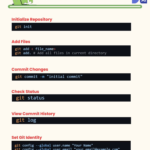
Once installed, configure your identity:
git config --global user.name "Your Name"
git config --global user.email "your.email@example.com"
Basic Git Commands (Beginner Level)
Initialize a Repository
git init
Add Files to Staging Area
git add file_name
git add .
Commit Changes
git commit -m "Initial commit"
Check Repository Status
git status
View Commit History
git log
These commands form the foundation of Git and are used daily by developers.
Branching & Merging in Git
Branching allows you to work on features independently without affecting the main code.
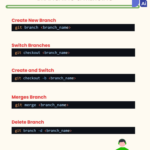
Create a New Branch
git branch branch_name
Switch Branch
git checkout branch_name
Create and Switch Branch
git checkout -b branch_name
Merge Branch
git merge branch_name
Delete Branch
git branch -d branch_name
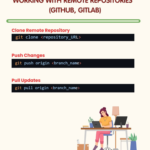
Working with Remote Repositories (GitHub / GitLab)
Clone a Repository
git clone repository_url
Push Changes
git push origin branch_name
Pull Latest Updates
git pull origin branch_name
Remote repositories help teams collaborate efficiently.
Advanced Git Usage (Professional Level)
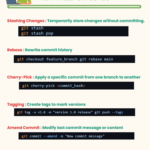
Stashing Changes
Temporarily save work without committing:
git stash
git stash pop
Rebase (Rewrite Commit History)
git checkout feature_branch
git rebase main
Cherry-Pick a Commit
git cherry-pick commit_hash
Tagging Versions
git tag -a v1.0 -m "Version 1.0 release"
git push --tags
Amend Last Commit
git commit --amend -m "Updated commit message"
Expert Git Commands (Power User Level)
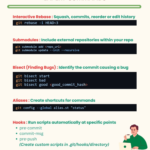
Interactive Rebase (Edit History)
git rebase -i HEAD~3
Git Submodules
git submodule add repo_url
git submodule update --init --recursive
Find Bugs Using Git Bisect
git bisect start
git bisect bad
git bisect good commit_hash
Create Git Aliases
git config --global alias.st "status"
Git Hooks
Automate scripts during Git actions:
- pre-commit
- commit-msg
- pre-push
(Custom scripts go inside .git/hooks/)
Resolving Merge Conflicts
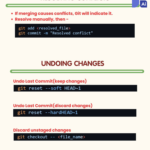
When conflicts occur:
- Resolve manually
- Add resolved file
- Commit again
git add resolved_file
git commit -m "Resolved conflict"
Undoing Changes Safely
Undo Last Commit (Keep Changes)
git reset --soft HEAD~1
Undo Last Commit (Discard Changes)
git reset --hard HEAD~1
Discard Unstaged Changes
git checkout -- file_name
Why Every Developer Should Master Git
- Industry-standard version control
- Essential for jobs & interviews
- Required for teamwork and open-source projects
- Saves time, prevents code loss
- Improves professionalism as a developer